Pupsai can automate the creation of marketing campaigns, and upsell your products during conversations with customers if you allow access to your products, services or inventory.
To get started, ensure you are logged in to your Pupsai account. For help logging in, refer to Login to Pupsai.
From your dashboard:
-
- In the navigation bar to the left of the page, select the "Team Management" menu option
- From the drop down menu, select "Inventory/Product Settings"
- You'll be redirected to the "Inventory/Product Settings" page
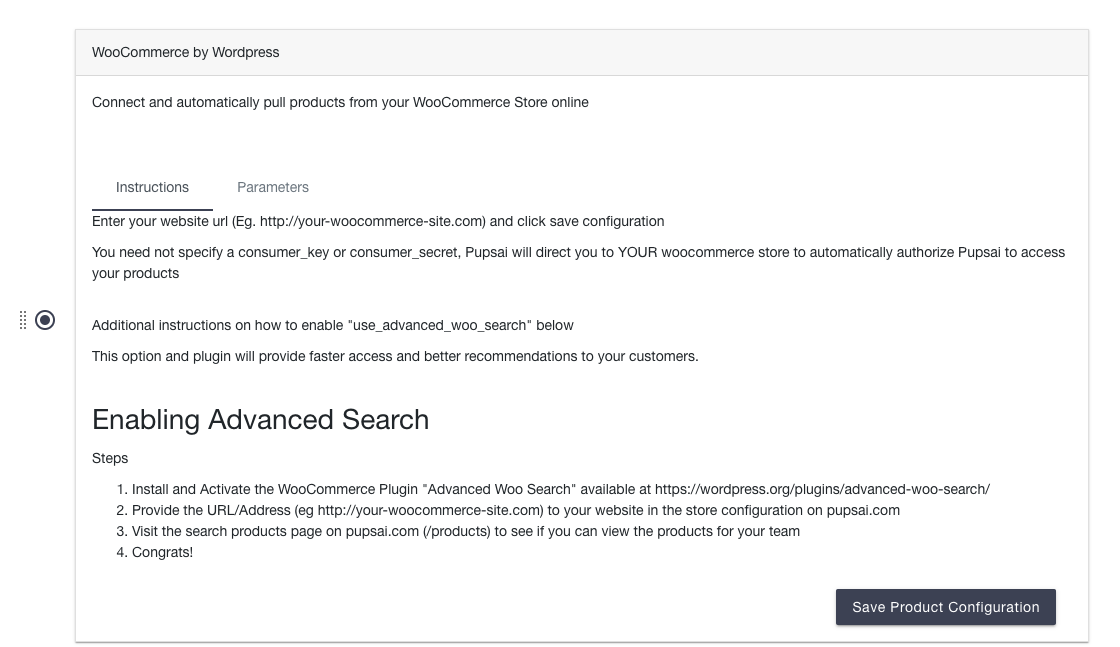
- Under "Product Storage Configuration", select the "WooCommerce by Wordpress" option
- Read the instructions carefully, then click the "Parameters" tab to enter your details.
- Enter your site url; an example to is provided for you to follow
- Do not populate any other field
- Click the "Save Product Configuration" button