- Your Website(s)
To get started:
- Ensure you are logged in to your Pupsai account. For help logging in, refer to Login to Pupsai.
- Ensure you have subscribed to Pupsai. If you have not done so and need help subscribing, refer to Subscribing To Pupsai.
- You should be an admin of the platform accounts you are adding, and ensure that you have the right credentials (usernames, passwords etc).
- You will be redirected to the platforms to enter your credentials, as such, we encourage you to either temporarily disable pop-ups and ad-blockers, or allow Pupsai to show you popups.
There are two (2) options that require you to add a platform; Campaigns and Engagement Analytics. Below are directions from both places:
Adding a Platform for Campaigns
From your dashboard:
- In the navigation bar to the left of the page, select the "Campaign" menu option
- From the drop down menu, select "My Platforms"
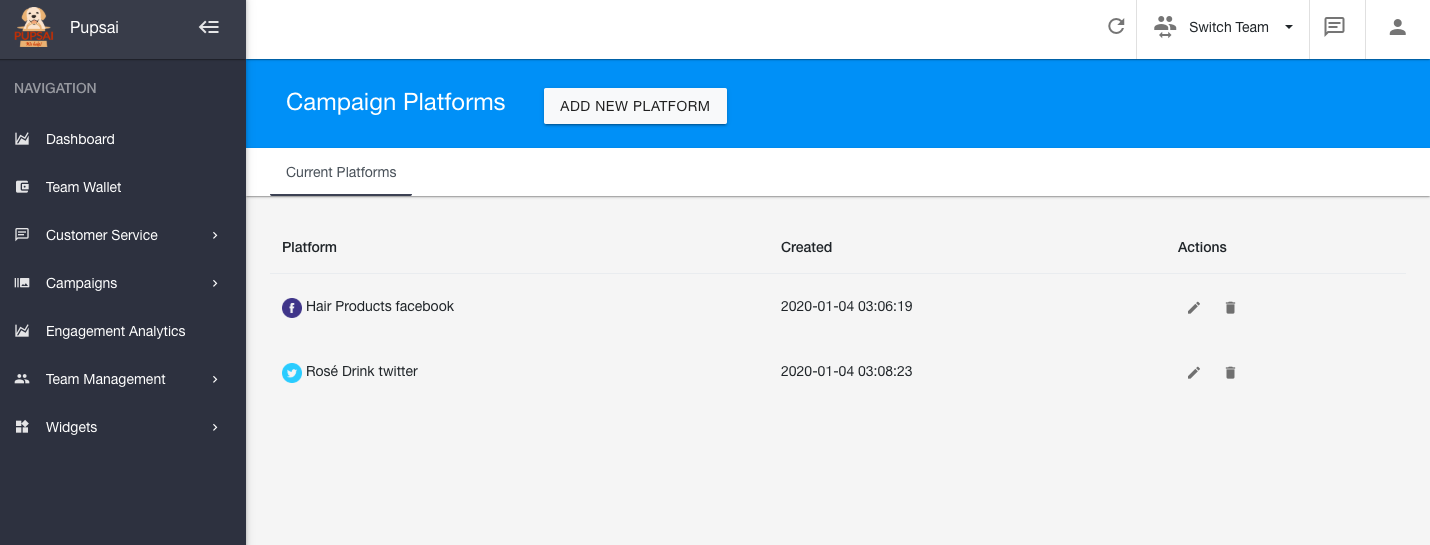
- You'll be redirected to the "Campaign Platforms" page
Adding a Platform for Engagement Analytics
From your dashboard:
- In the navigation bar to the left of the page, select the "Engagement Analytics" menu option
- Click the "Add Platform" button
- You'll be redirected to the "Campaign Platforms" page
Once you are on the "Campaign Platforms" page, follow the instructions below:
Adding Facebook
- Click the "Add Platform" Button
- At "Platform", select "Facebook" from the drop down menu
- Click the "Continue with Facebook" button
- You will be redirected to enter your credentials
- Login to your account, then select the page(s) you wish to use and select "Next"
- In the next step, you will determine what Pupsai can do with the Pages you selected
- On the "Authorizing Facebook" Click the name of your Facebook page.
- Once the "successfully subscribed" message is seen, close the page and return to Pupsai
Adding Twitter
- Click the "Add Platform" Button
- At "Platform", select "Twitter" from the drop down menu
- Click the "Authorize Using Your Twitter Account" button
- You will be redirected to enter your credentials
- Login to your account, then select the page(s) you wish to use
- Once the "Added new twitter Message Channel" message is seen, close the page and return to Pupsai
Once you have added the channel(s), you will be able to:
- See a list of your platforms
- Edit your platforms
- Delete your platforms