To get started:
- Ensure you are logged in to your Pupsai account. For help logging in, refer to Login to Pupsai.
- Ensure you have subscribed to Pupsai. If you have not done so and need help subscribing, refer to Subscribing To Pupsai.
Viewing Social Media Insights Reports
From your dashboard:
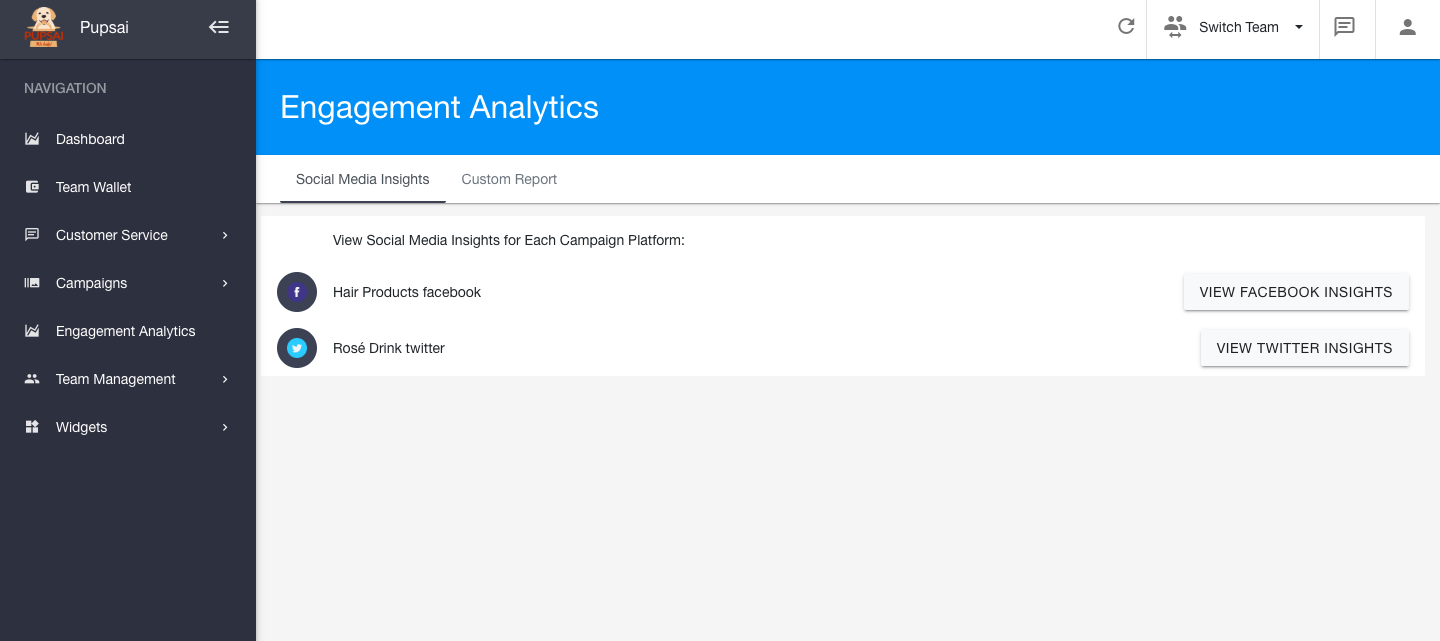
- In the navigation bar to the left of the page, select the "Engagement Analytics" menu option
- You'll be redirected to the "Engagement Analytics" page
- If you do not have any campaign platforms added, refer to Adding A Platform for help adding them
- Once your platforms have been added, they should appear under the "Social Media Insights" tab
- Click the "View Facebook Insights" or "View Twitter Insights"
- You'll be redirect to Facebook and Twitter respectively to view the reports
Customizing Reports
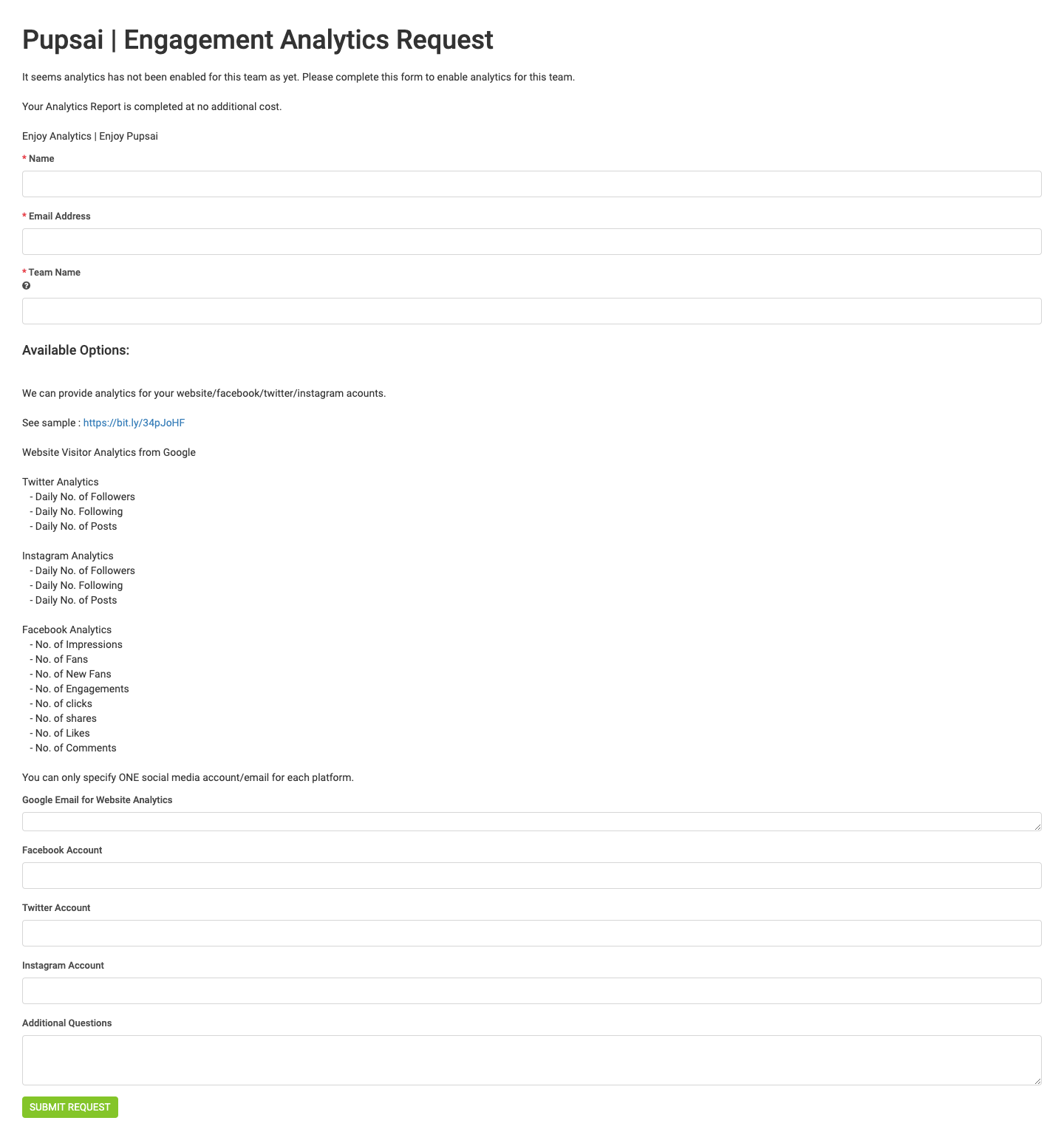
If you haven't already done so, you will have to enable this setting for your team, by filling out the Engagement Analytics Request form shown below:
To access this form from your dashboard:
- In the navigation bar to the left of the page, select the "Engagement Analytics" menu option
- You'll be redirected to the "Engagement Analytics" page
- Under the "Custom Reports" tab, click the "Request your own custom analytics report" button
- You will be redirected to the form. All fields marked with the red asterisk (*) are required.
- After completing and submitting the form, it is sent to the Pupsai team
- Once your report has been set up by the Pupsai team, navigate back to the "Custom Reports" tab to see the reports
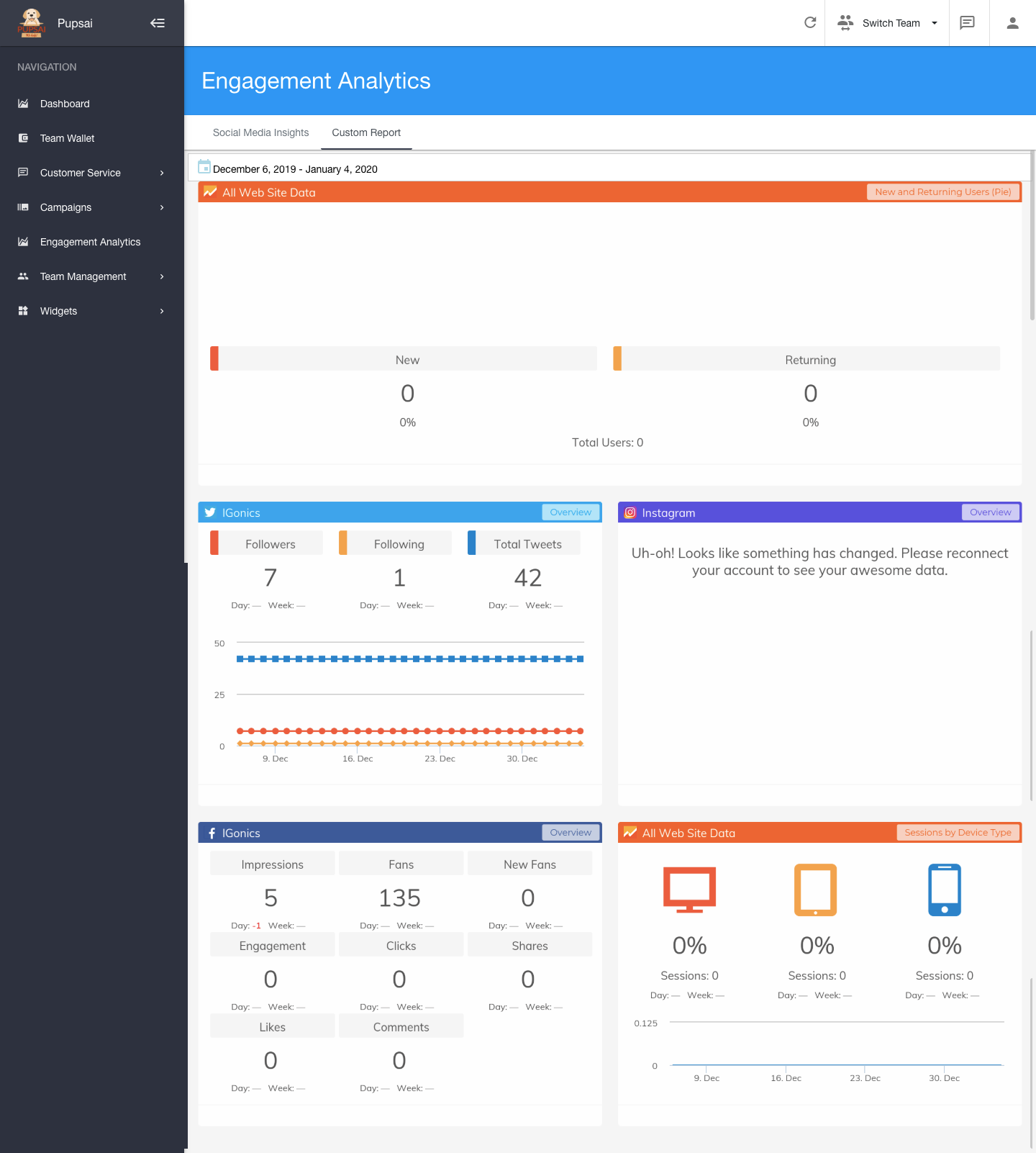
- From here, you can choose a date period of reports you want to see. See Image below